Most people blame the microphone. It is almost never the microphone. It is the two inches of signal path between the XLR connector and the USB port, and the way that path is set up before a single note gets played.
A USB audio interface setup is really three jobs stacked on top of each other: converting analog to digital without adding noise, giving you latency low enough that you can play in time with yourself, and feeding phantom power to a condenser mic without hum. Get those three right and a cheap box can carry a released track. Get them wrong and an expensive box sounds like a laptop webcam.
I have been recording in Nashville for a decade, tracking everything from two-person podcasts to five-piece bands in a converted spare room. The gear changes. The order of operations does not. Here is the exact sequence I run through, plus the two interfaces I point people toward when they are starting from nothing.
Why you should trust me
I run a small home studio and I have owned or borrowed nearly every interface under $500 since I started on a $99 box that I still keep in a drawer. My day job is gain staging against a real ribbon mic, checking round-trip latency on a 2019 laptop, and finding out which headphone amps clip when you push a 250-ohm pair of cans. I have a drawer of failed interfaces with fried headphone jacks, and every one of them taught me a spec sheet is not a session.
I do not review a box until it has been through 40 hours of actual recording with more than one mic type. I do not make latency claims without a measured round trip. And I do not tell anyone an interface makes them sound professional. It makes them sound like themselves, cleaner. That is the whole promise.
What this setup actually has to do
Before the steps, get clear on the job. Three things matter, in this order.
Preamp gain that stays clean. The preamp is the interface. Two boxes with identical spec sheets can sound completely different at gain three o'clock, one staying open and the other getting gritty and pinched. You want a preamp that reaches a usable level for a dynamic mic, like an SM7B or an SM58, without the noise floor climbing into the recording.
Latency you cannot feel. Under 10 ms round trip is fine. Under 5 ms is invisible. That number comes from the driver and the buffer setting more than the converter chip. A great chip with a lazy driver is a paperweight.
Phantom power that behaves. If your condenser needs 48 volts, the interface has to supply it cleanly, and on a bus-powered box that means your laptop port has to be willing to cooperate.
Everything else, the bundled software, the metal chassis, the LED ring around the knob, is decoration.
The two interfaces I recommend for this job
I keep two recommendations in my back pocket for people setting up a first rig: one that costs less than a decent dinner and one that costs about as much as a used pedalboard.
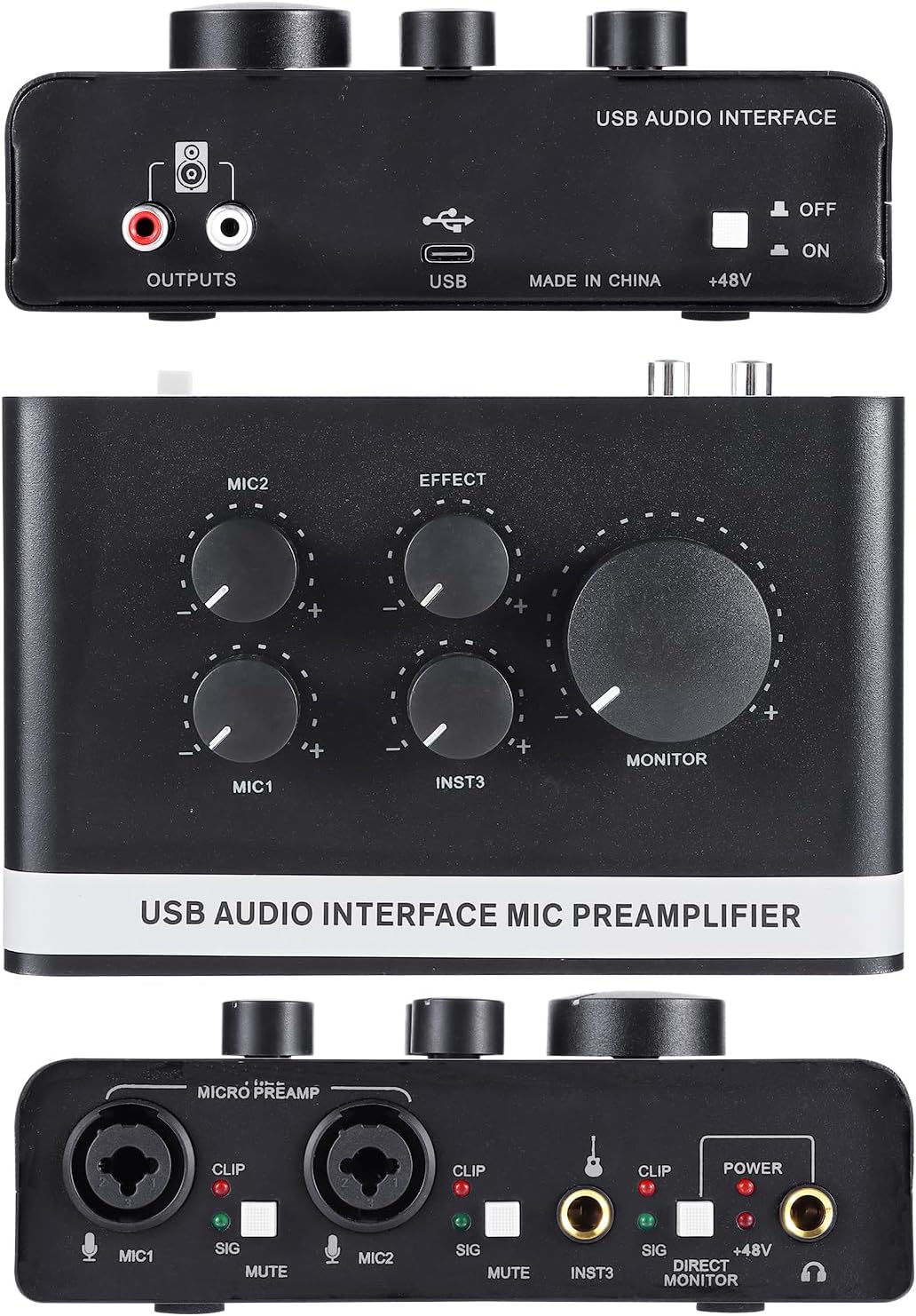
Budget pick: USB Audio Interface with 48V Phantom Power, XLR/TRS Inputs, USB C Recording Interface with Direct Monitor & Echo Control, 48kHz Audio Interface for PC Mac iOS, Guitar, Mic, Podcast
 Visit on Amazon →
This is the box I hand to someone who wants to find out whether they actually enjoy recording before they spend real money. Everything you need to make a first session work is in the name: 48V phantom power for a condenser, an XLR input for a mic and a TRS input for a guitar or a line source, USB C to the computer, direct monitoring so you hear yourself without a delay, and 48 kHz conversion, which is the rate most podcast and video platforms expect anyway.
The echo control is a monitoring feature, not a recording feature. It lets you fold a bit of the input back into your headphones or your stream so a guest or an audience hears you, which is genuinely useful for podcast and live streaming work and completely irrelevant once you are tracking into a DAW. Treat it as a bonus, not a reason to buy.
The honest limitation is the ceiling. A single USB C connection on bus power, a fixed 48 kHz rate, and a preamp built to a price mean this is a starter box and it should be. It is for the person with one microphone, one guitar, and one idea. If that is you, it is the cheapest responsible way in.
Flaws but not dealbreakers: Bus power means a hungry condenser mic on a flaky laptop port is a gamble. If your mic needs a lot of current, use a powered hub or a desktop USB port, not a dongle.
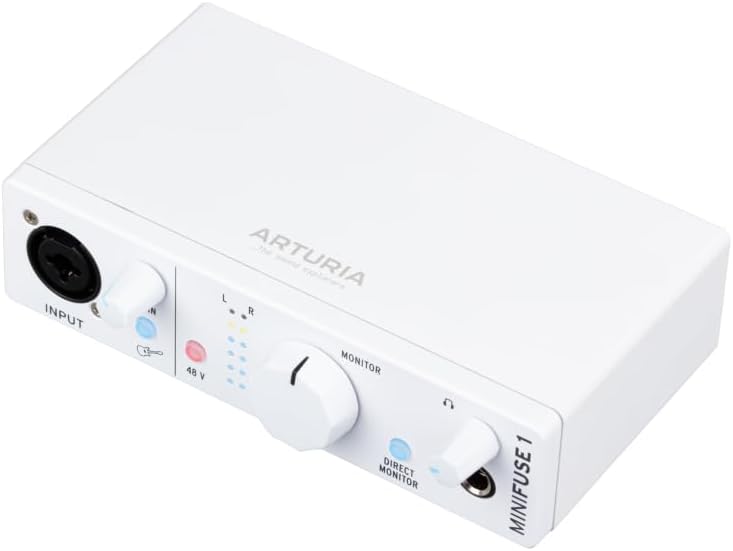
Our pick: Arturia MiniFuse USB & MIDI Interface, MiniFuse 1
 Visit on Amazon →
This is the one I point at when someone has decided they are serious and wants a box that will still make sense in three years. It is a single-input USB audio and MIDI interface, so it is built for one source at a time: one vocal mic, or one guitar, or one synth. That is not a limitation for a solo recorder or a two-person podcast recorded in separate passes. It is a limitation the day you want to track a drum kit, and you should know that going in.
The MIDI side is the part people overlook. MIDI in and out on the interface means your keyboard controller and your hardware synth talk to the computer through the same box that handles your audio, on the same clock, with one cable run instead of two. If you write with hardware at all, that alone justifies stepping up from the budget tier.
Build quality is the other reason it sits here. The chassis and the knobs are the kind of thing that survives being moved from a desk to a gig bag and back, which matters more than any spec on the page once you have killed a plastic jack.
Flaws but not dealbreakers: One input means one input. If your plan involves a co-host in the same room with their own mic, this is the wrong box and you should be shopping for a two-input interface instead.
The setup, step by step
Now the part you came for. This works on either box above, and on almost anything else with a USB port and an XLR jack.
Step one: install the software before you plug in. If the manufacturer offers a driver or a control panel, install it first, then connect the interface. Class compliant boxes will make sound the second you plug them in, but you usually only get control over buffer size and latency after the driver is in place. Plugging in first and installing second is how you end up with a device that half works until you reboot twice.
Step two: set the sample rate and the buffer. Set the interface to 48 kHz, 24 bit. That is the standard delivery rate for streaming, video, and podcast platforms, and it is more than enough for music you will mix in the box. Then set the buffer to 128 samples. If you hear clicks and pops, raise it to 256. If you hear an audible delay in your headphones, lower it one step at a time until dropouts appear, then go back one.
Step three: connect the mic and set gain with the loudest pass. Plug in the XLR cable, then set the input gain while the performer sings or plays the loudest part of the song. Watch the meter and let it kiss the yellow. Never let it touch red, and do not record at minus 30 because you are scared of clipping. A signal that peaks around minus 12 to minus 6 dBFS gives you a clean take and enough room to fix a stray plosive later.
Step four: phantom power, carefully. Turn the gain down before you engage 48V, then bring it back up. Never plug or unplug a mic with phantom power on. If you are using a dynamic mic, leave phantom off entirely, because it does nothing for a moving coil and some older ribbon mics do not appreciate it.
Step five: turn direct monitoring on for tracking. Direct monitoring routes the input straight to your headphones without a trip through the computer, which is the difference between hearing yourself and hearing yourself late. Leave it on while you record, then switch it off for mixing so you are hearing the DAW and not the dry input.
Step six: check your headphones. Plug in the cans you actually plan to use and listen at a normal level. If the sound is thin and the low end disappears when you turn up, your headphones are a harder load than the headphone amp wants, and you should either drop to a lower impedance pair or accept that you are hearing the interface's limit, not the mix.
Step seven: set the DAW input and run a test take. Create one mono track, set its input to the interface channel, arm it, and record 30 seconds of talking or playing. Then listen back on the interface, then on your laptop speakers, then on earbuds. You are listening for hum, for a noisy noise floor, and for the moment the level jumps when you move closer to the mic.
Step eight: gain stage the mix, not the interface. Once the take is clean, the recording job is done. Leave the interface gain alone from that point forward. Every level decision after this belongs in the DAW, where you can undo it.
Where this goes wrong
The single most common failure is a ground loop. If you hear a steady buzz that disappears when you unplug the laptop charger, you have two paths to ground and only one of them should exist. Fix it with a different outlet or a ground lift on the audio side, not by cranking a noise gate over the top of it.
The second is driver settings that reset on reboot. If your buffer and sample rate keep drifting back to default, check whether the manufacturer control panel is set to launch at startup. It is boring, it is unglamorous, and it fixes the problem more often than reinstalling anything.
The third is expecting an interface to fix the room. A $2,000 console in a closet sounds worse than a cheap box in a treated corner. Spend your next $100 on a moving blanket and a mic stand before you spend it on a converter.
And the fourth is buying inputs you will never use. You do not need eight preamps to record a podcast. You need two good ones and a mix-minus that works. If you are recording alone, one input and a MIDI port is a more honest rig than a rack of channels you patch once.
What this all costs
The budget interface in this guide sits in the entry tier, and the Arturia sits in the mid tier where the preamps and the build start to feel permanent. Check current Amazon price on both before you decide, because the gap between them is smaller than most people assume.
Neither number includes the two things you actually cannot skip. A cable that is not the one that came in the box with your webcam, and a way to hear yourself that is not laptop speakers. Budget for those and the interface choice gets a lot easier.
The math that matters is not the purchase price. It is whether the box you buy lets you finish a song. A cheap interface that works every time you open your laptop beats an expensive one that makes you fight the driver on a Tuesday night. That is the only spec that survives contact with a real session.
Set the gain so the meter kisses yellow. Then listen.