Most home studio problems start before the first take. USB audio interface setup is where beginners stall: the box is plugged in, the microphone is plugged in, and the recording still sounds thin, or the headphones echo half a second behind the performance, or the DAW refuses to see the hardware at all.
I have been a recording engineer in Nashville for ten years, and I have watched this exact scene play out in my own room more times than I can count. The interface is almost never the broken part. The order you do things in is the broken part.
This is the order I use on every session, whether it is a two-mic podcast or a full band tracking day. Budget 30 minutes the first time. After that it is a 90-second routine you stop thinking about.
Why you should trust me
I run a small studio in Nashville and I have tracked everything from solo singer-songwriters to five-piece bands through interfaces that cost less than a decent dinner. I started on a cheap two-channel box and I have owned or borrowed nearly every model under $500 since. I keep a drawer of the ones that failed, and the failure is almost always one of two things: a headphone jack that crackles at low volume, or drivers that reset my settings on every reboot.
I do not quote latency numbers I have not measured on my own machine, and I do not tell anyone that a new interface will make them sound like a record. Your first interface will make you sound like you, cleaner. That is the whole point.
How I judge an interface before I recommend it
I worked from the published specs and the contents of each box for the two units below, plus the same four-question gauntlet I run on anything that comes through the studio:
- Do the preamps stay clean when you push the gain toward three o'clock? Every interface sounds fine at low gain. The tell is what a dynamic mic needs at 55 dB.
- Is the round-trip latency workable on a mid-range laptop? Drivers matter more than the converter chip, and a great chip with terrible drivers is a paperweight.
- Does the headphone amp drive a pair of 250-ohm cans without folding?
- Would I track a paying client on it?
Where a claim would need a bench test I have not run on that exact unit, I say so instead of inventing a number. Prices also move every few weeks, so I link the listing and let you check the current number yourself.
The two interfaces worth starting with
Almost every first setup is covered by one of these two boxes. One is the cheapest path to a real two-input rig. The other is the bundle I hand to people who want the accessories sorted before they plug anything in.
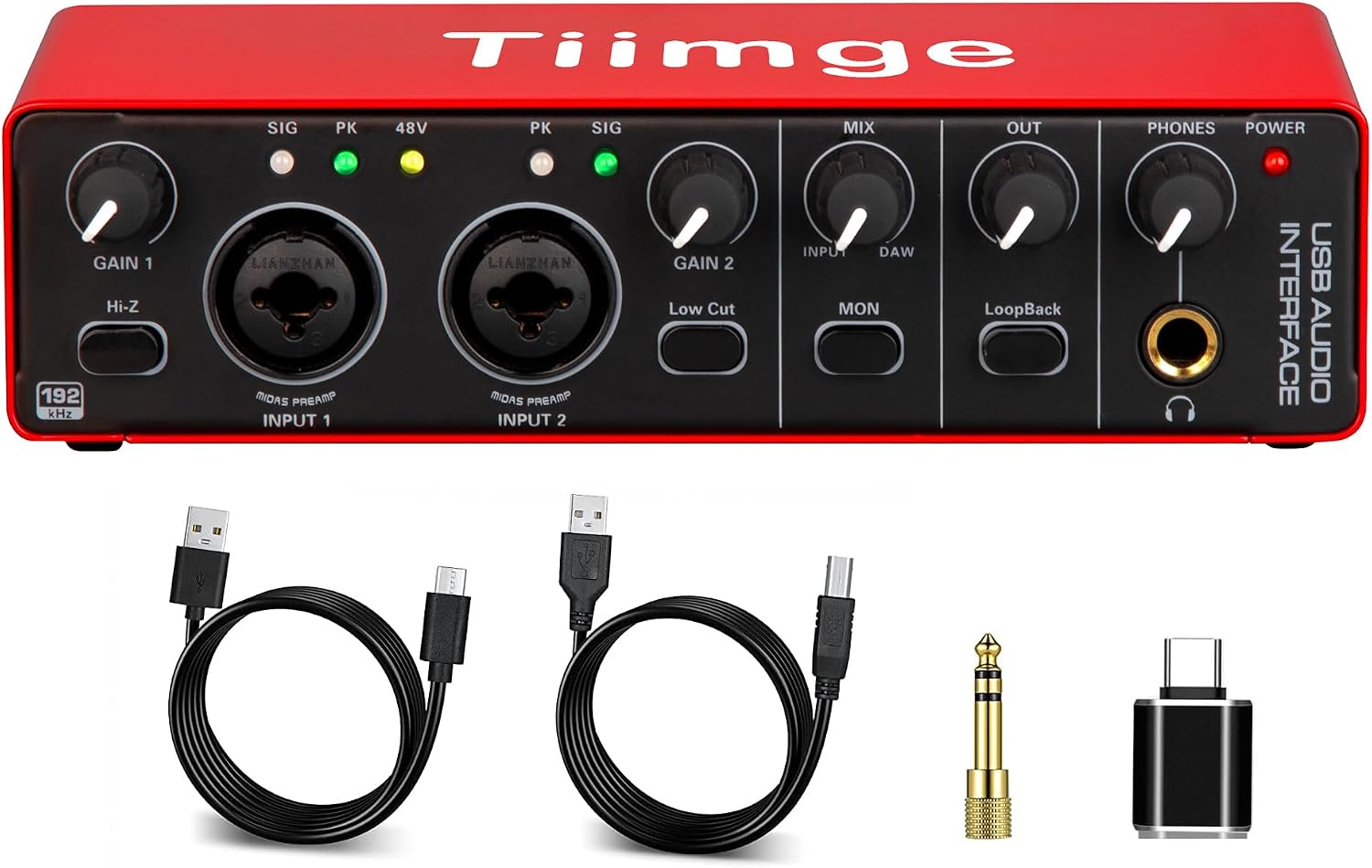
Budget pick: USB Audio Interface for PC, 2x2 Recording Interface with 48V Phantom Power, 24Bit/192kHz Studio Sound, XLR/TRS Inputs, Low Latency Monitoring for Guitar, Podcast, Music Production & Home Studio
 Visit on Amazon →
This is the box I point beginners at when the budget decides the purchase. Two combo XLR/TRS inputs, 48V phantom power, 24-bit/192kHz conversion, and low-latency monitoring. That is the full feature set a first studio actually uses: one microphone and one guitar at the same time, or two microphones for a two-person podcast.
The combo jacks matter more than the spec sheet suggests. A combo jack takes an XLR cable for a microphone and a quarter-inch cable for a guitar or keyboard with no adapter, so you can move from a vocal take to a direct-in take in about four seconds. The 48V switch is what lets you run a real condenser microphone instead of settling for a USB mic with a converter built into it.
Flaws but not dealbreakers: At this price the drivers are the wild card. Before you buy, find the manufacturer's driver page and confirm there is a current download for your operating system. If there is not, walk away, no matter how good the numbers look. Check current Amazon price on the listing, because this category moves fast.
Anyone recording one or two sources at a time on a tight budget will get years out of this.
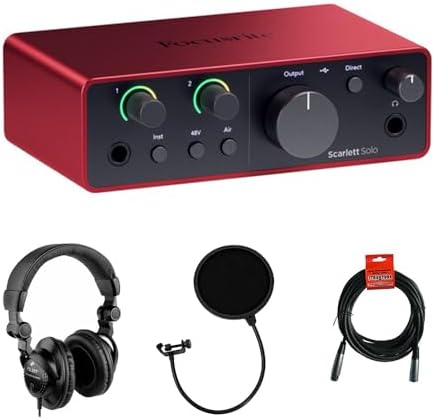
Our pick: Focusrite Scarlett Solo USB-C Audio Interface (4th Gen) Bundle with Polsen HPC-A30 Studio Monitor Headphones, Pop Filter and XLR- XLR Cable
 Visit on Amazon →
If you would rather buy once and have the whole chain in one box, this is the one. The interface is a USB-C single-preamp unit, which is the classic singer-songwriter and solo-podcaster shape: one XLR microphone input, one instrument input, a headphone output, and a monitor output pair. The bundle adds the parts people forget to order: Polsen HPC-A30 studio monitor headphones, a pop filter, and an XLR-to-XLR cable.
That accessory list is the reason I rank this above a bare interface for a first setup. A pop filter fixes more plosives on a spoken-word recording than any plugin chain will, and having a real XLR cable in the box means you are not tracking through the thin cable that came with a toy microphone. Check current Amazon price on the listing and compare it against the budget box plus a cable and headphones bought separately.
Flaws but not dealbreakers: One preamp means one microphone at a time. If you plan to sit a guest across from you in the same room, this is not the box. The 2x2 above is the cheaper answer for that.
Anyone recording vocals, guitar, or a solo show who wants the entire signal chain delivered at once should start here.
The actual setup workflow
Eight steps, in this order. Steps two and three are the ones people skip and then blame the hardware for.
Step one: Install the driver before you connect anything. On Windows, download the manufacturer's driver installer first, run it, and only plug the interface in when the installer tells you to. On a Mac, most interfaces are class compliant and will work the moment you connect them, but you still want the vendor's control software for firmware updates and buffer settings. Plugging in first and installing later is how you end up with two half-installed drivers arguing in Device Manager.
Step two: Set the interface as your input and your output in the operating system. Do this at the OS level before you touch the DAW. On Windows, open Sound Settings and set both input and output to the interface. On a Mac, use Audio MIDI Setup. If your laptop speakers stay as the output device, you will spend twenty minutes wondering why the DAW will not play through your headphones.
Step three: Set the buffer size in the DAW. Start at 128 samples at 44.1 or 48 kHz. That is the sweet spot for tracking on a mid-range laptop. Drop to 64 if your machine keeps up and you want the monitoring to feel instant. Raise it to 256 or 512 when you start stacking plugins in the mix, because a large buffer costs you nothing when you are not playing along to the track.
Step four: Measure your own round-trip latency. Do not trust the marketing copy. Record a short click through the interface, look at how far the recorded waveform lands from the grid, and that offset is your round-trip in samples. Convert it to milliseconds at your sample rate. Under 10 ms is fine for tracking, under 5 ms is invisible, and anything past 20 ms means the buffer is too high or the driver is not doing its job.
Step five: Plug the microphone in and set the gain. XLR cable into input one. Engage 48V phantom power for a condenser and leave it off for a dynamic mic. Then have the performer deliver the loudest line in the song, and raise the gain until the meter is kissing yellow, peaking somewhere between -12 and -6 dBFS. Never let it touch red. A clipped take cannot be rescued in the mix, and no plugin undoes it.
Step six: Use direct monitoring while you track. Most interfaces have a direct monitor switch or knob. Turn it on for the take so the performer hears themselves straight from the preamp, before the signal makes the trip through the computer. Switch to DAW monitoring when you mix. The echo people complain about is almost always software monitoring left on during a take.
Step seven: Run a 30-second test pass and listen for noise. Record silence with the gain set where you set it, then turn the headphones up. You are listening for hum, buzz, and hiss. Hum usually means a ground loop or a cheap USB cable. Hiss at high gain is the preamp itself, and if you can hear it over the performance, that is a real problem worth a return.
Step eight: Save the whole thing as a project template. Once the buffer, the sample rate, and the input routing are right, save that as your default template. This is the step that saves you from the driver that forgets everything on reboot.
The three things that go wrong
Nothing shows up in the DAW. Check the OS-level device selection first, then the DAW's audio device setting, then the cable, then whether the interface is sitting on an unpowered USB hub. In that order. Nine times out of ten it is the hub.
The headphones echo. You have monitoring turned on in two places. Use the interface's direct monitoring for tracking and turn software monitoring off in the DAW. Pick one and only one.
The recording is quiet and hissy. The gain was set too low at the preamp and the level is being made up with a plugin. Set the level at the input, with the fader and the plugins at zero. That is the entire discipline of gain staging, and it is 80% of a good recording.
What this all costs
I am not going to quote prices here. They move every few weeks and any number I write today is wrong by the time you read it. Check current Amazon price on both listings and compare the two paths honestly: the bare budget interface plus a cable plus a pair of headphones, against the bundle that arrives with all three in the box.
The part that actually costs you is the afternoon you spend learning the order. A two-input interface and one decent microphone will record a podcast, a demo, or a full singer-songwriter record if you set the gain properly and keep the room quiet. The interface is maybe 10% of how the finished thing sounds. The other 90% is the performance, the room, and the gain staging. Get the setup right once and it stops being the thing you think about.